Topic outline
-
-

This page contains everything you need to participate fully in the course. Come back here any time you need help with the platform, want to contact a facilitator, or need to find the Zoom link for a live session.
Getting started: Set up your Moodle profile
Setting up your Moodle profile ensures your name appears correctly when you participate in discussions, submit assignments, and when your certificate is issued. If you have not yet set up your profile, please do this now. To set up your profile:
- In the top right-hand corner of the screen, look for a grey circle and click on it.
- From the drop-down menu, select Profile.
- Click Edit profile.
- Ensure your full name and email address are correctly captured.
- Fill in the city or town and country where you work.
- In the Description box, write a short biography including the name of your library and your position there.
- Upload a clear photo of your face using the User picture option.
- Click Save.

Digital tools
To participate fully in this course you will need the following tools. All apps listed are free. If you have any difficulty installing or accessing these tools, contact your facilitator using the details on this page.
- Moodle: You are already here. To access the course on your phone, download the Moodle mobile app. It is available on Google Play for Android phones and on the Apple App Store for iPhone and iPad.
- Zoom: Zoom is used for all live sessions. Download the Zoom app on Google Play for Android, on the Apple App Store for iPhone and iPad, or at zoom.us/download for desktop and laptop computers. You will need to create a free Zoom account if you do not already have one.
- WhatsApp: WhatsApp is used for informal communication, peer support, and course reminders. Download it on Google Play for Android or on the Apple App Store for iPhone and iPad. Use the link in the Join the course WhatsApp group item on this page to join the course group.
- PDF reader: Course documents are shared in PDF format. If your device does not open PDF files automatically, download Adobe Acrobat Reader. It is available on Google Play for Android and on the Apple App Store for iPhone and iPad.

Join the course WhatsApp groupJoin the course WhatsApp group to stay connected with your peers and the facilitation team throughout the course. The group is used for reminders, informal discussion, and peer support. It is not used for submitting assignments or graded activities.
Use the link below to join the group. The link is unique to this cohort and will be updated for each new intake.

Zoom weekly sessions
All live sessions for this course are hosted on Zoom. You will find the Zoom link, meeting ID, and passcode below. The same link is used for all sessions throughout the course. Session dates and times are listed in the course calendar in the Resources section.
Zoom link: ADD
Meeting ID: ADD
Passcode: ADD
 Course schedule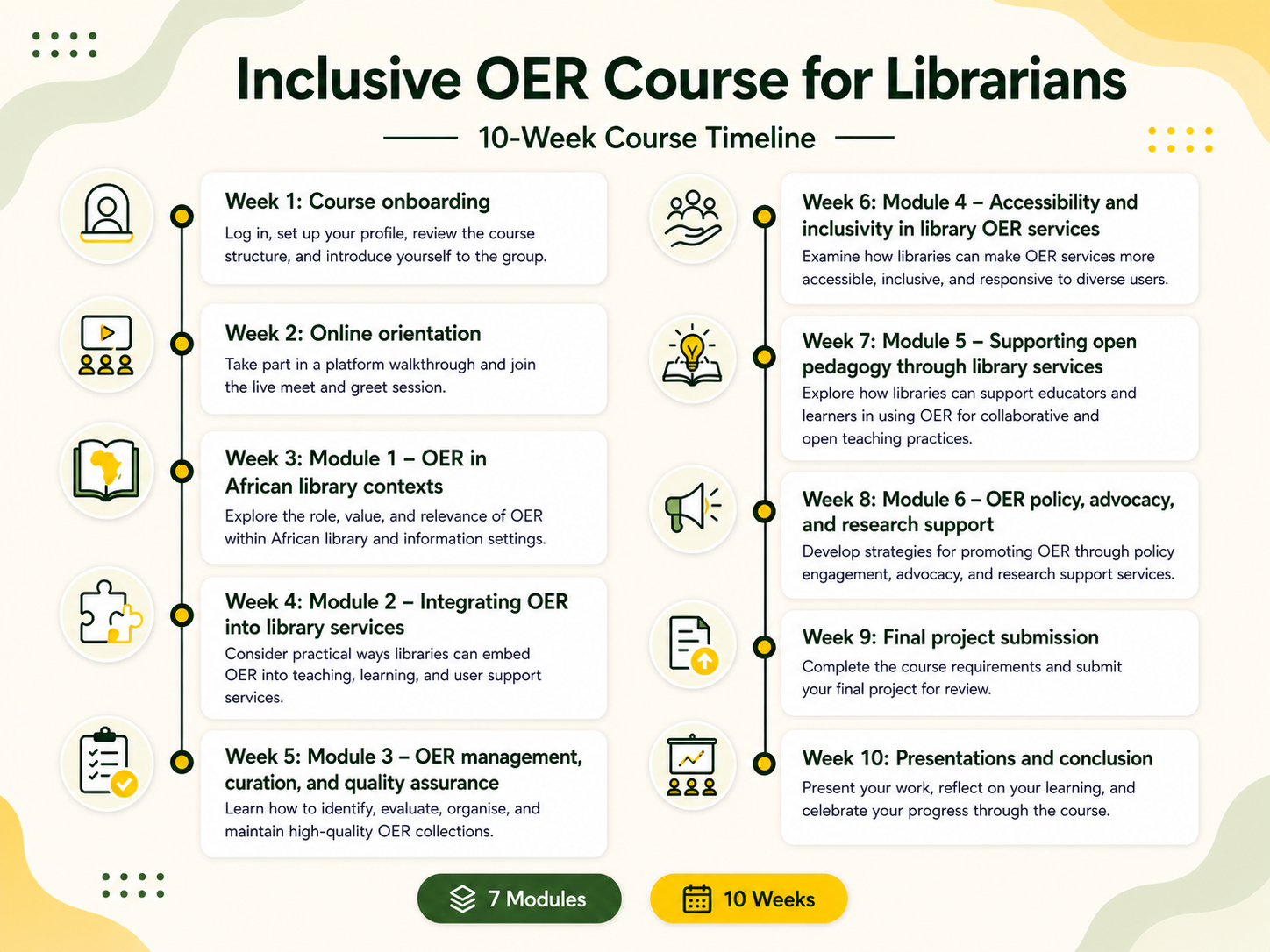
 Technical support
If you are experiencing a technical problem with the course platform, a video, or an activity, here is what to do:
- Check the digital tools section above to make sure your apps and software are set up correctly
- Check the course WhatsApp group to see if others have reported the same issue
- Contact your facilitator using the details on this page
- If the problem is with the Moodle platform itself, contact the platform administrator at [email address to be confirmed]
Please include the following when reporting a technical issue: your name, the module and activity where the problem occurred, the device and browser you are using, and a brief description of what happened.
 Meet your facilitators
Your facilitation team is here to support you throughout the course. Get to know them below and make a note of how best to contact them if you have a question or need support.
-
Page
-
Background Colour
Font Face
Font Kerning
Font Size
Image Visibility
Letter Spacing
Line Height
Link Highlight
Paragraph Width
Text Alignment
Text Colour